
Configuration using CC-Switch
CC-Switch is suitable for unified management of vendor configurations of CLI such as Claude Code, Codex, and Gemini. Compared to manually changing configuration files, it is more suitable for users who are accessing PuLu AI for the first time.
What is CC-Switch?
With CC-Switch, you can:
- Switch API configurations with one click to quickly switch between multiple API providers.
- Manage all configurations through a graphical interface.
- Manage MCP servers.
- Quickly switch through the system tray.
- Use local agents to support hot switching of CC, Codex, and Gemini vendors.
- Use failover capabilities to automatically switch when channels are abnormal.
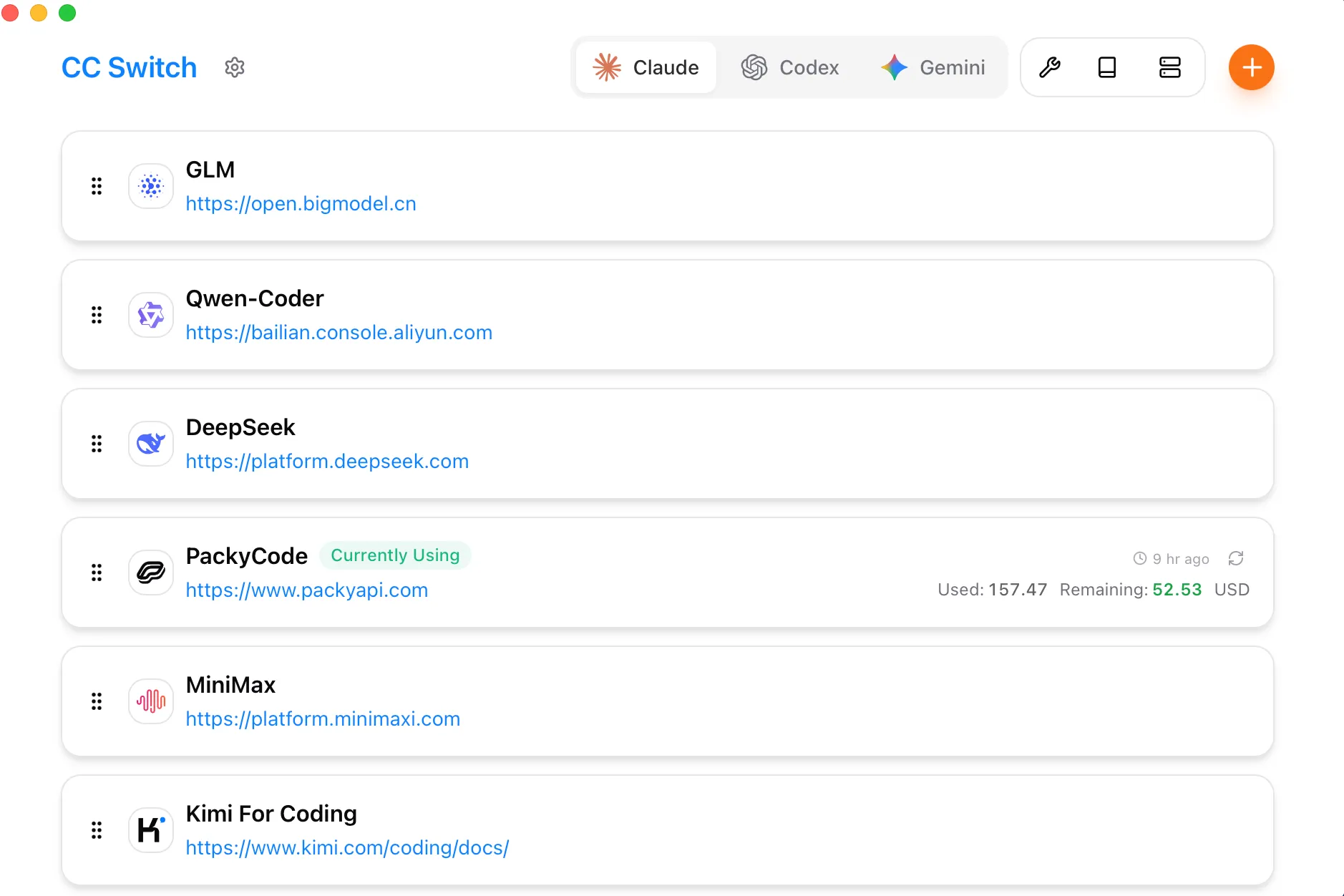
software download
Visit the CC-Switch download page to download the latest version and install it locally:
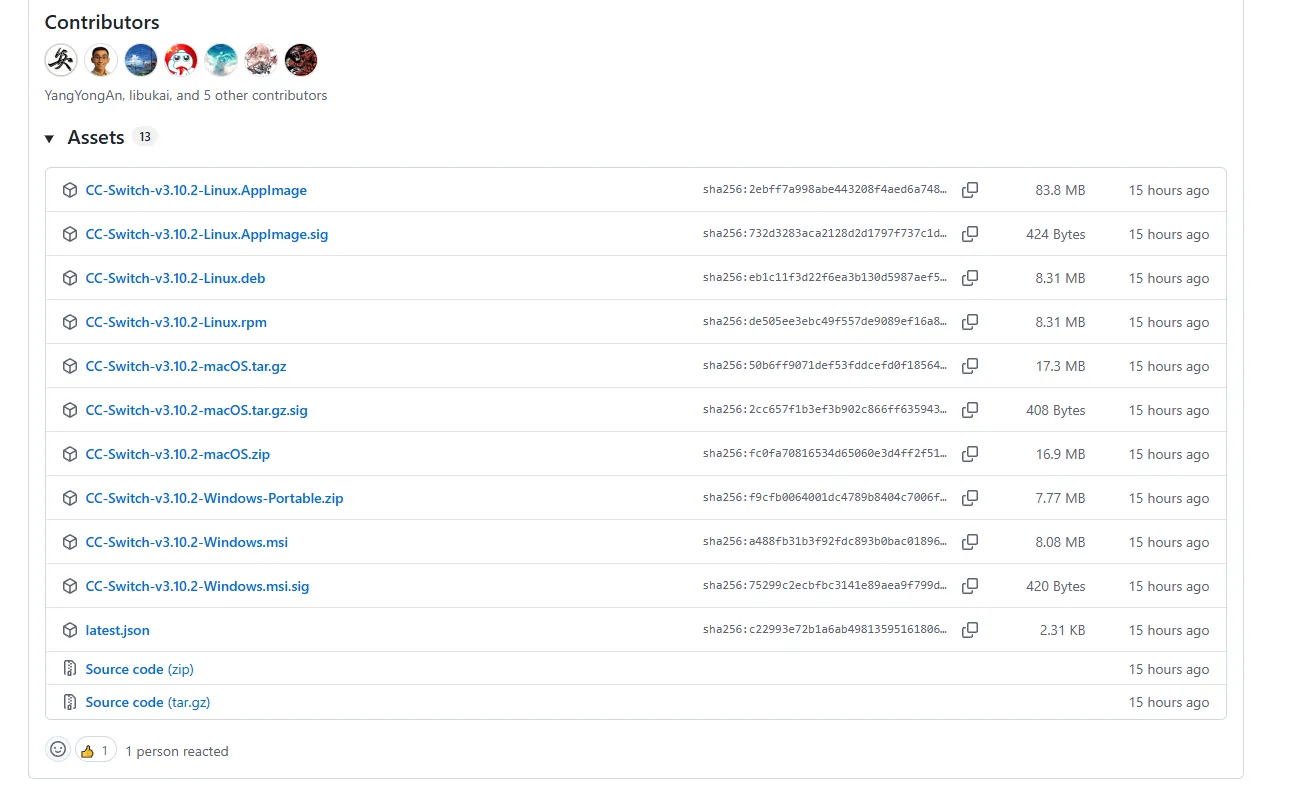
Configure channel providers
Take Claude's configuration as an example below. Codex and Gemini are configured in the same way.
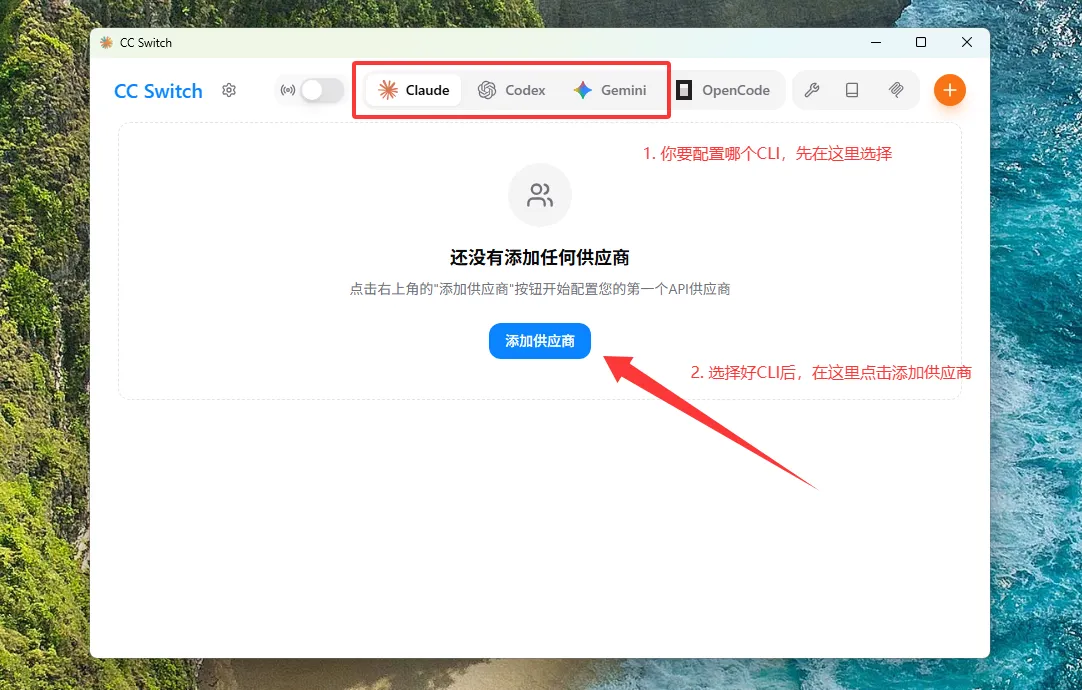
Step 1: Select the CLI to configure
Open CC-Switch and select the CLI you want to configure. After selecting the CLI, click Add Vendor to configure.
Step 2: Add a custom supplier
Select a custom vendor in the vendor configuration, and fill in the key you generated in the PuLu AI backend in the API Key section.
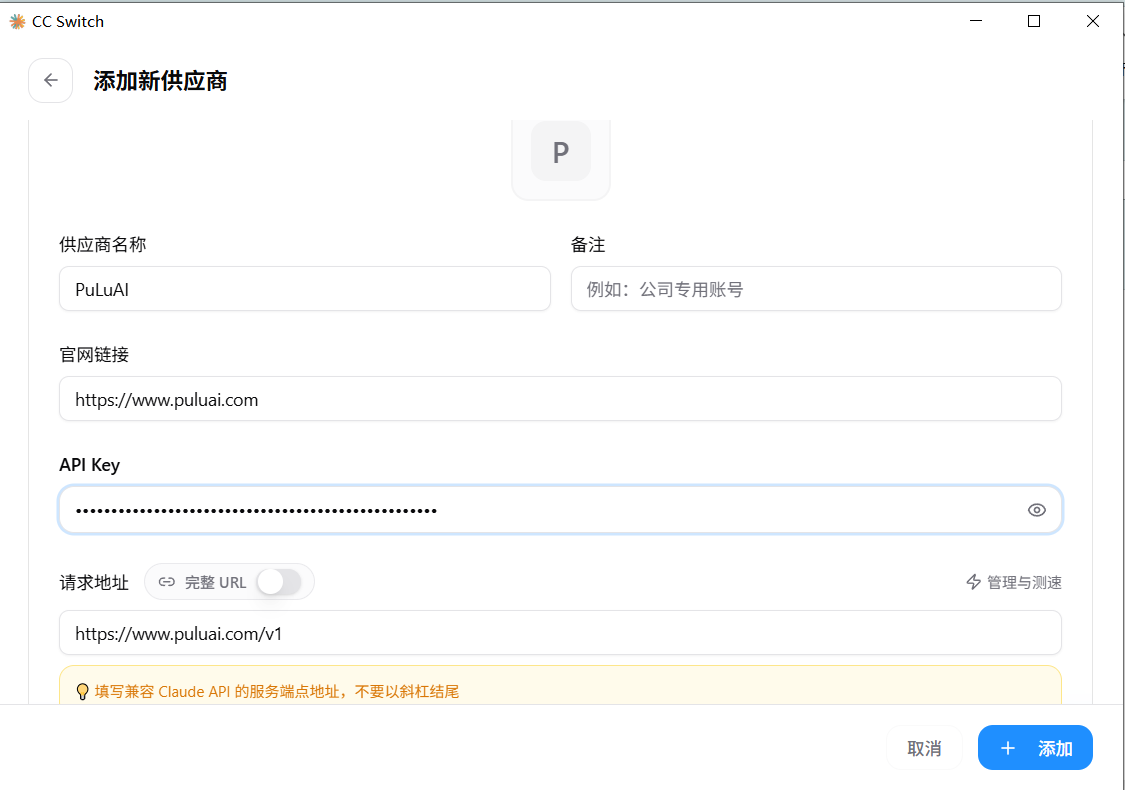
Recommended to fill in:
供应商名称:PULUAI
API 地址:https://www.puluai.com/v1
API Key:填入你的密钥
Tips
If you use Claude Code, Codex, and Gemini at the same time, you can configure one CLI first and test it successfully, and then configure other CLIs in the same way.