
Configure and use in CherryStudio
CherryStudio supports OpenAI-compatible interfaces and can be directly connected to the API address of PuLu AI.
Important
Please prepare the PuLu AI API Key before starting. If you do not have a Key yet, please refer to充值与 API Keyfirst.
Add Model Services
- Open CherryStudio.
- Click the Settings button in the upper right corner.
- Go to the ** Model Services ** page.
- Click ** Add ** at the bottom of the model services list.
- Add a new provider.
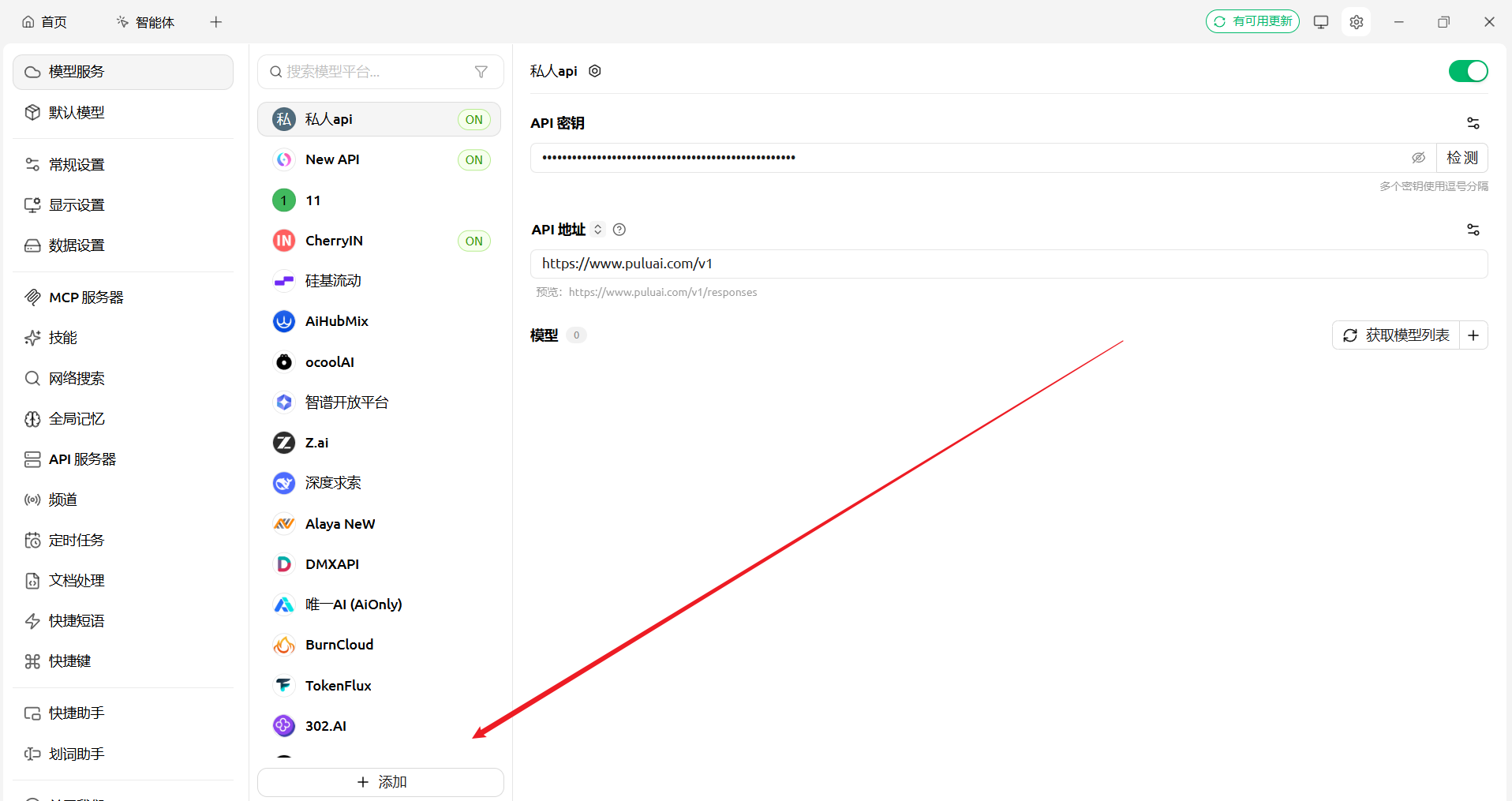
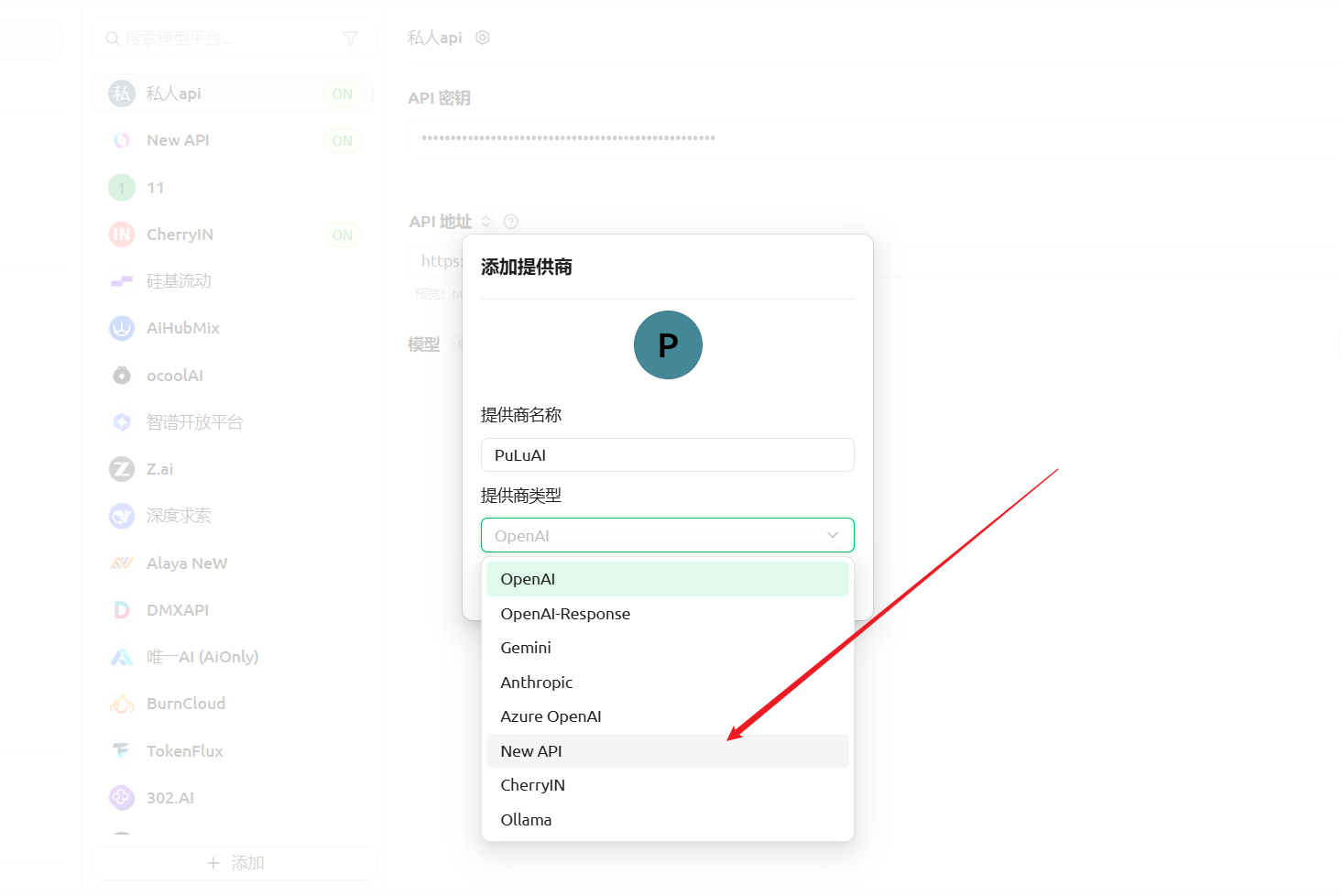
Fill in provider information
Fill in the pop-up window by clicking below:
| filling contents | 填写内容 |
|---|---|
| PULUAI | PULUAI |
| OpenAI compatible interface | OpenAI 兼容接口 |
https://www.puluai.com/v1 | https://www.puluai.com/v1 |
| Your PuLu AI API Key | 你的 PuLu AI API Key |
After filling in, click Get Model and select the model you want to use. You can first select a text model for minimum testing, and then add pictures or other models as needed.
verification
After saving, create a new session and send:
你好,请用一句话说明当前模型已经连接成功。If the content can be returned normally, CherryStudio has successfully accessed PuLu AI.