
Recharge and API Key Management
After recharging in the PuLu AI console, the account will pay according to the amount based on the balance. When a model is called, the system will deduct fees from the balance based on the model price.
recharge
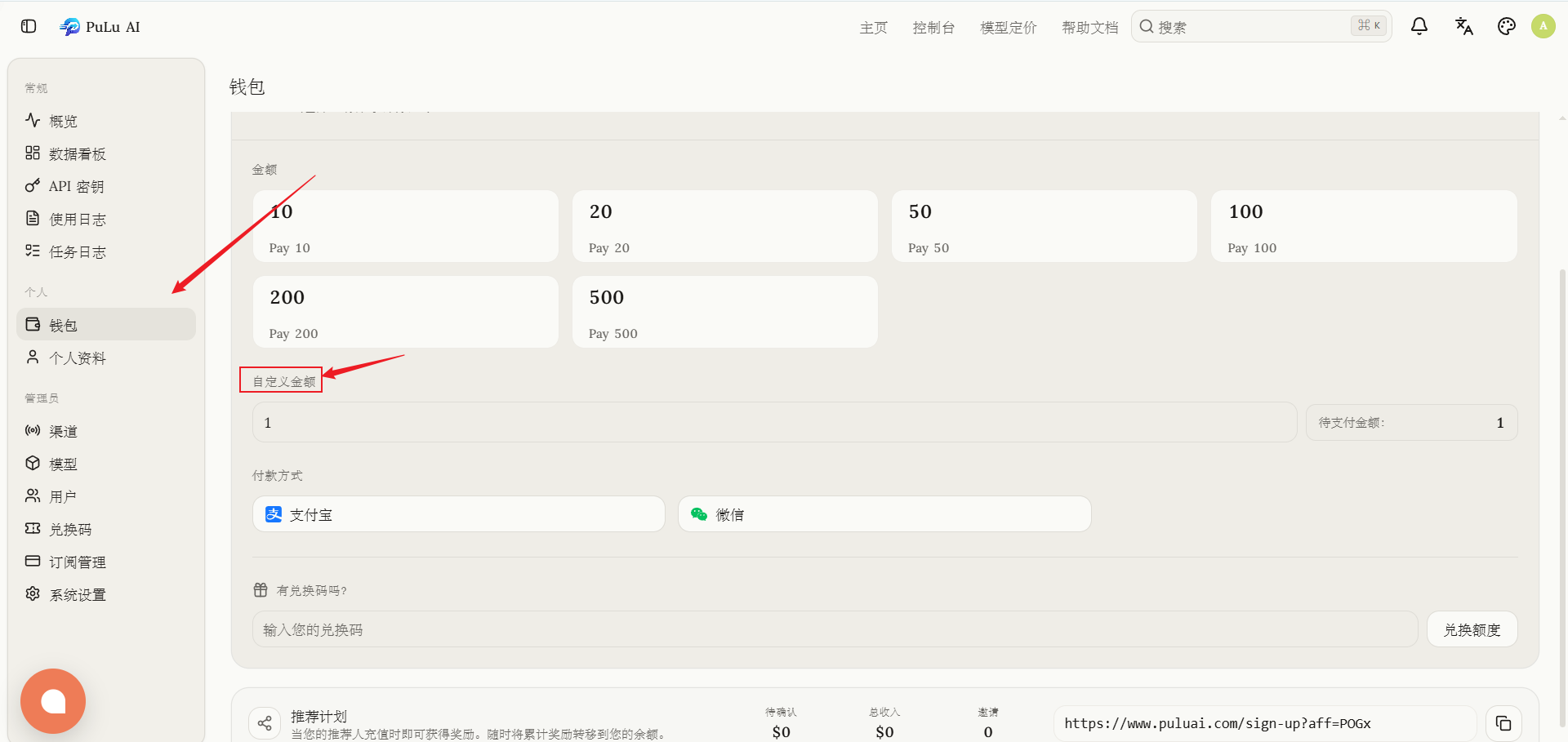
- Go to the PuLu AI console.
- Click ** Wallet ** on the left panel.
- Select the amount you need to recharge in the credit recharge area and complete the payment.
- After successful recharge, you can invoke the available models according to the amount through the configured API Key.
Tips
If you have just finished recharging but the client still prompts you that the balance is insufficient, refresh the console page first and then re-initiate the minimum test request.
creating a Key
- Go to the PuLu AI console.
- Click **API Management ** on the left panel.
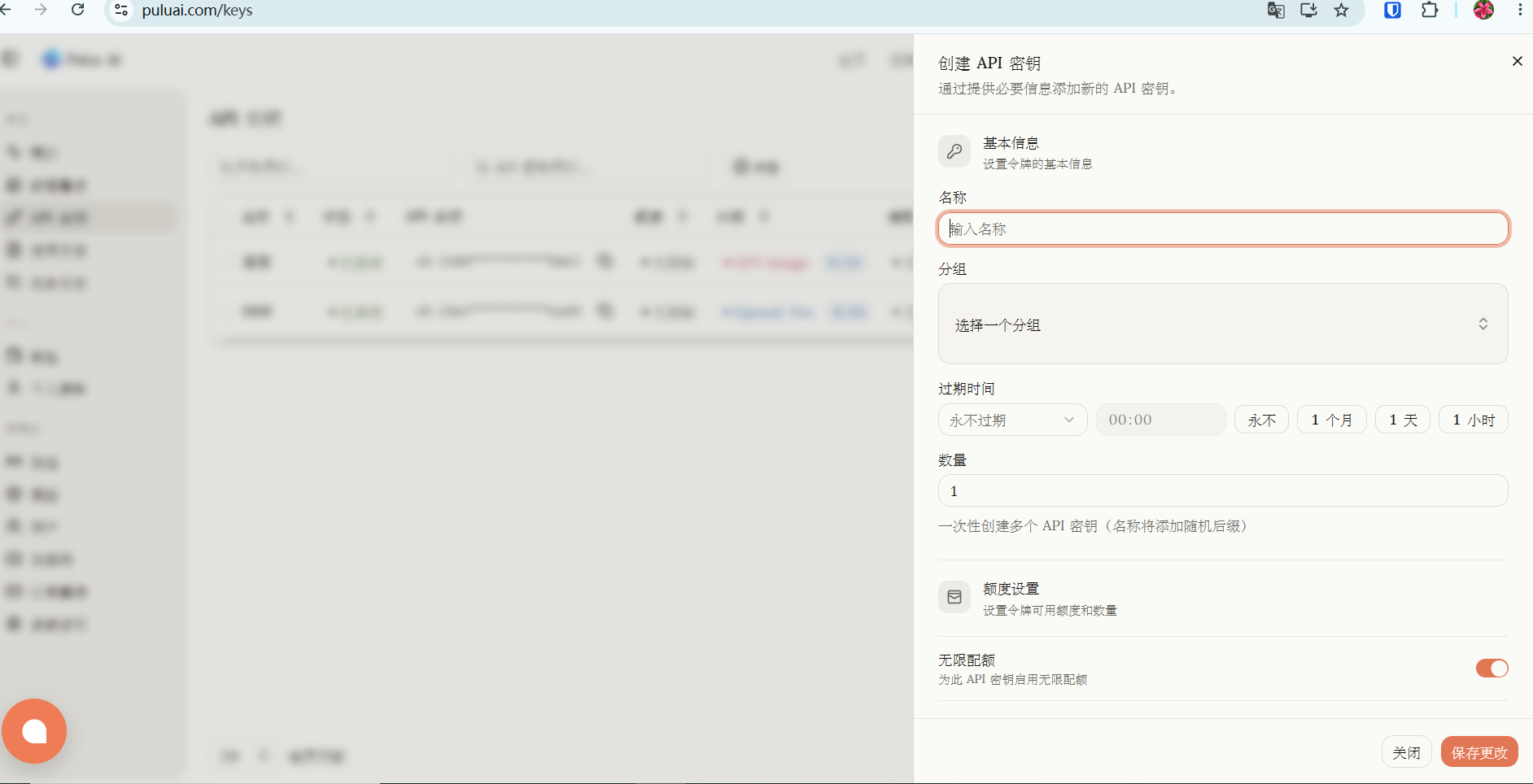
- Click ** in the upper right corner to create an API key **.
- Copy the key after creation and save it in your own safe location.
Note when creating a key:
- See clearly the grouping ratio and avoid selecting wrong grouping.
- Newbies generally keep the default configuration, and it is not recommended to open too many restrictions at the beginning.
- The API Key will only be displayed once. Please confirm that it has been saved before closing the page.
Key permission description
API Key can set permissions separately. Common controls include:
- ** Available model restrictions **: Only this Key is allowed to call the specified model.
- **IP whitelist **: Limit the source IPs that can use the Key to reduce the risk after leakage.
API Key 是账户资产的钥匙
Please do not post API keys to chat logs, public repositories, screenshots or web pages. If the leak is confirmed, please delete the old Key and recreate it as soon as possible.